Please note: The 'Transport Orders' page is only available for users with the 'Transport Orders' permissions enabled.
Transport Orders make it possible for you to request a move for your Expected and Present Transhipment containers between the Delta and Delta II terminals.
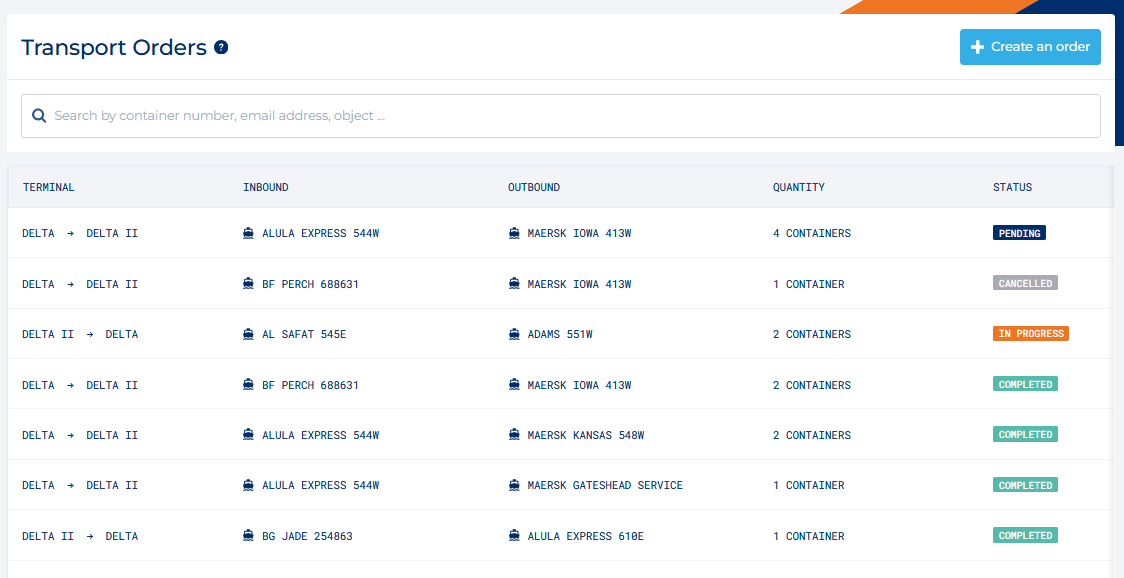
The transport order overview shows all the transport orders that have been made in the last 90 days by you or one of your colleagues.
The overview contains the following information:
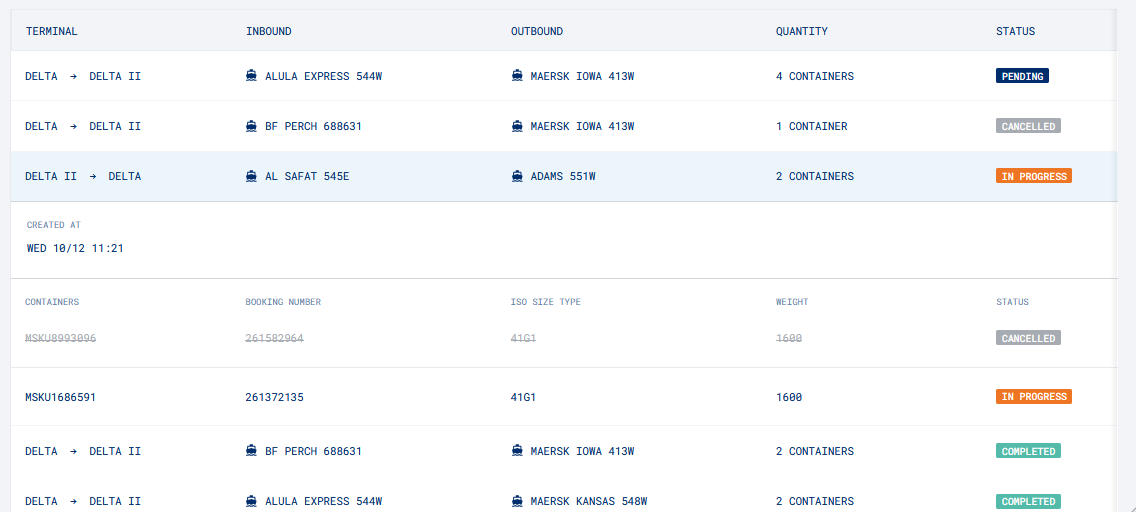
Every order can be clicked in order to open a list of all the containers within that transport order. This list contains the following information:
Find a transport order quickly → Use the search bar to search for:
MyTerminal shows the most accurate status whenever possible. A transport order or a container within can contain any status at a given time. This is what the status means.
To create a new Transport Order you will need to click the 'Create an order' button in the top right. This will open a new segment that enables you to request a move for your container(s).
Please note: You cannot create multiple transport orders for the same container.
Specific information is required for ECT to know what specific container needs to be transported and where it needs to be transported to. Depending on the direction of your Transport Order different information is required.
Please note: The information provided must match the details on the loading list. The data entered on the transport order will be treated as the definitive source when scheduling the transport order.
When searching for incoming or outgoing vessel we will show the most relevant objects. If you do not see the vessel that you are looking for, you can search for the vessel name in the search bar above the list of objects. Not all objects will be available for a transport order.
Vessel requirements
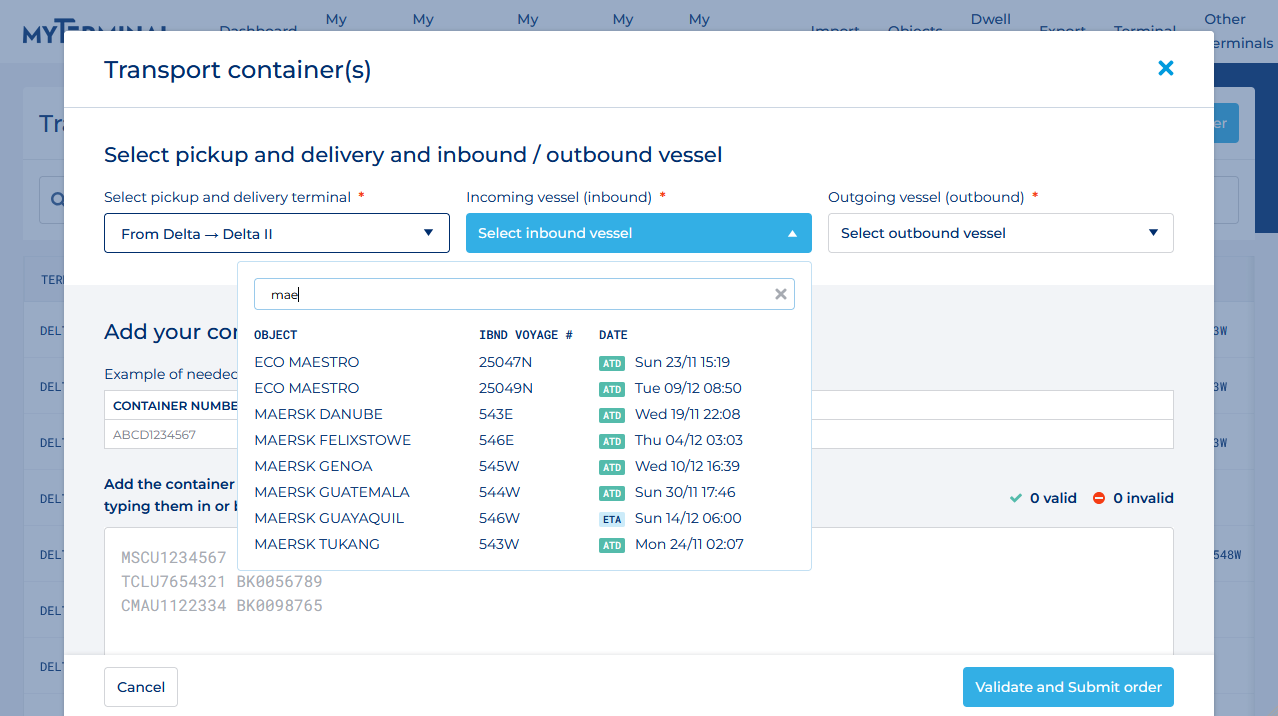
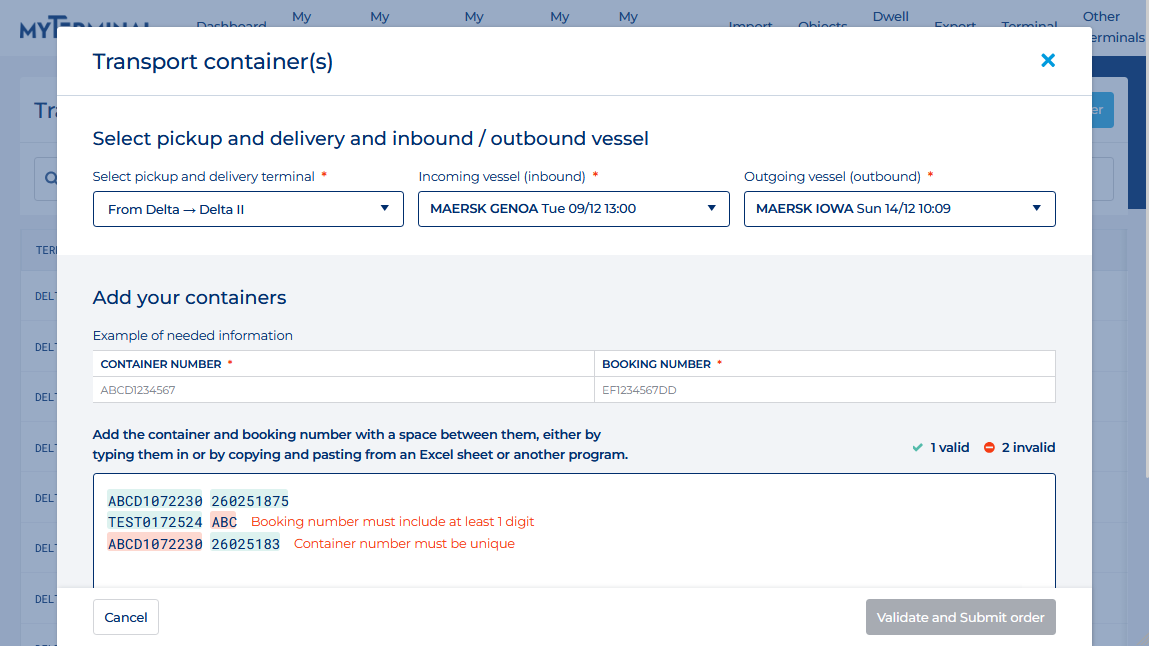
When moving containers from the Delta to the Delta II terminal we will just need the container number and booking number. MyTerminal will fill in all other necessary information to ensure that your container can be transported correctly.
In the large box near the bottom you can add up to 100 containers simultaneously. It is necessary to split the container number and booking number with a space inbetween. Adding additional containers can be done by pressing Enter and adding another container below the previous one.
Any mistakes or faults found will be shown in the same window. Once all the information is correctly formatted and entered you will be able to create the Transport Order by clicking the "Validate and Submit order" button in the bottom right.
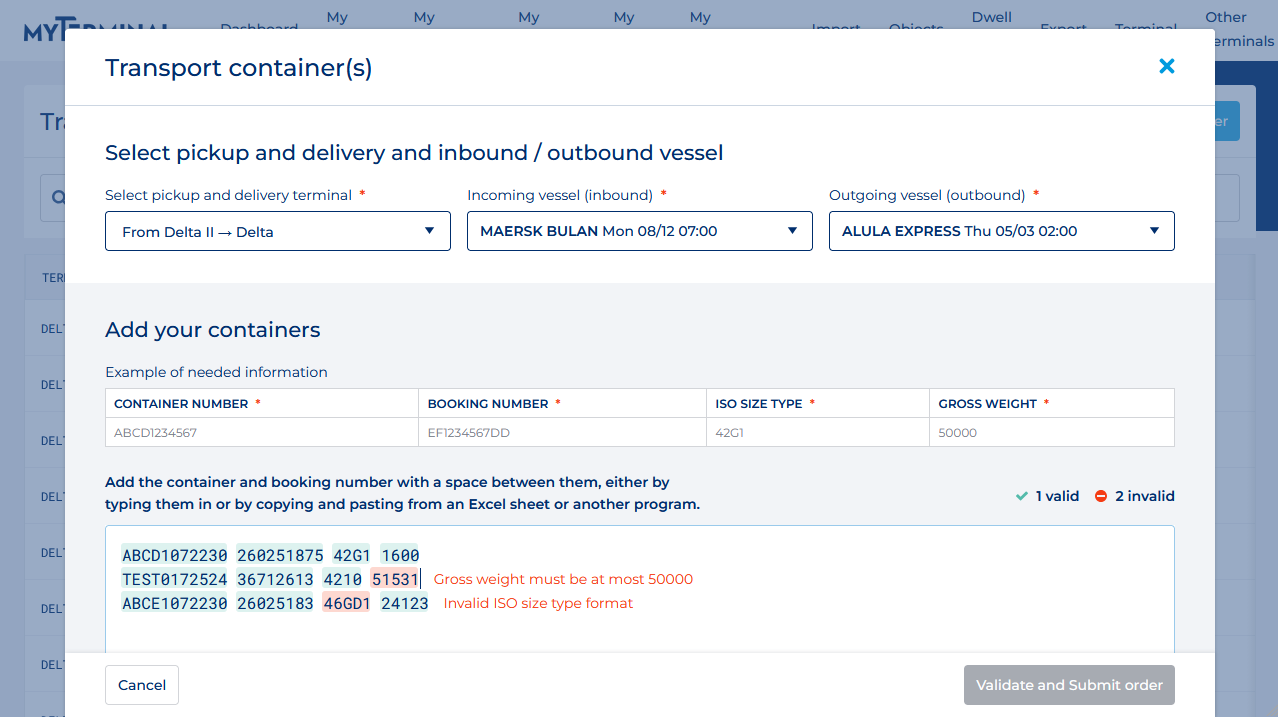
Moving containers from the Delta II to Delta terminal is similar. To ensure that we can move your container correctly we do require additional information.
In addition to the container number and booking number we also require the ISO Size Type and Gross weight. These can be added on the same line in the large box. Divide the container number, booking number, ISO Size Type and Weight with a space inbetween.
Any mistakes or faults found will be shown in the same window. Once all the information is correctly formatted and entered you will be able to create the Transport Order by clicking the "Validate and Submit order" button in the bottom right.
Moving containers require some time. If you no longer require a container to be transported you can cancel your container transport order. As long as it has not yet been started.
Cancelling a container transport order can be done by finding the transport order that the container is connected to and then opening up the list of containers for that transport order. Finally click the 'Cancel Transfer' button on the right-hand side of the overview.
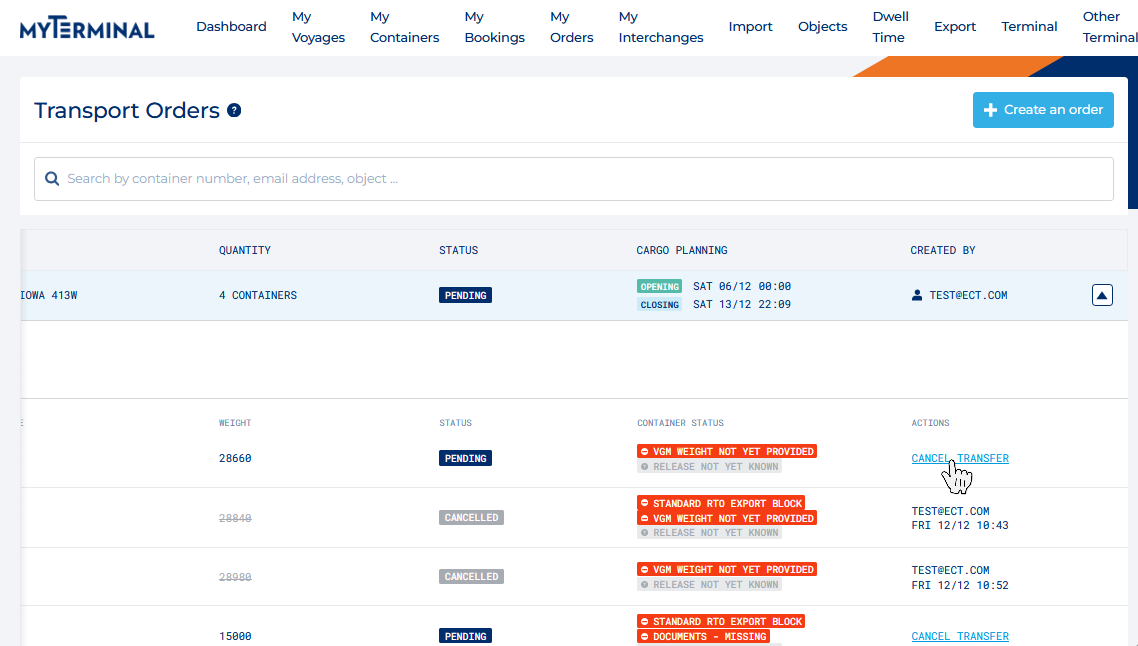
Clicking this button shows a confirmation screen, if you are sure you'd like to continue with cancelling the container transport, click on 'Confirm'. Otherwise you can click 'Cancel'.
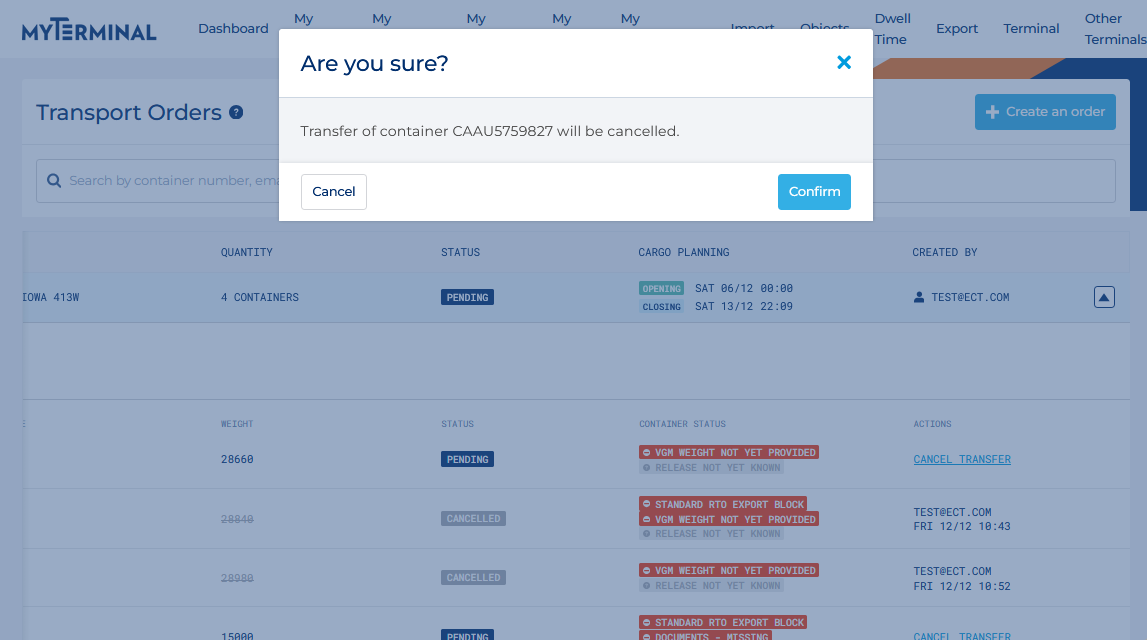
It is important to know that cancelling a container does not necessarily cancel the entire transport order. If the transport order contains any other container, they can and will still be processed unless cancelled in time. The status on the transport order will reflect the status of the entire order, the status of a container is visible within the opened list.
If all containers within a transport order have been cancelled the order will also display a 'Cancelled' status.

